Ex-UK Laptop Checklist: What to Test Before You Pay
A good Ex-UK laptop can deliver years of service at a fraction of the original price. A poor one can fail within weeks. A careful 15-minute inspection makes a big difference.
1. Check the specifications
Open Settings, then System, then About, and confirm that the processor, RAM and storage match the listing. Press Windows and R, then type dxdiag to see graphics information.
2. Check the processor generation
Intel chips are named with a number showing generation. For example, an i5-8350U is 8th Gen and an i5-1135G7 is 11th Gen. For most Windows 11 systems, 8th Gen or newer is the official minimum. Microsoft ended regular support for Windows 10 in October 2025, so older hardware has real limits.
3. Run a battery report
Open Command Prompt and type: powercfg /batteryreport. Open the file it creates and compare design capacity to full charge capacity. A big gap means a worn battery. Replacing a battery is possible, but add that cost to the price.
4. Inspect the screen
Display solid white, black, red and blue images to reveal dead pixels, discolouration and pressure marks. On touch screens, draw across every area.
5. Test the keyboard and trackpad
Use a free keyboard test website or open a notepad and try every key. Worn keys are common on business laptops. Test both trackpad buttons.

6. Test every port
Plug in a USB device, HDMI cable, headphones and charger. Try any USB-C port for charging and display if the model supports it. A faulty port can be costly to fix.
7. Check for BIOS and company locks
Enter the BIOS at startup and confirm that there is no password. Look for corporate management such as Intel vPro or an enrolled work account. During Windows setup, a laptop that insists on logging into an organisation may be enrolled in a company's system. Ask the seller to resolve this before you pay.
8. Check storage health
Free utilities such as CrystalDiskInfo show drive health. A drive reporting caution or bad status should be replaced. Make sure the laptop has an SSD, not a hard drive.
9. Test Wi-Fi, Bluetooth, camera and microphone
Join a Wi-Fi network, pair a Bluetooth device and make a test video call. Webcam and microphone faults often go unnoticed until your first meeting.
10. Listen for the fans
Run a demanding video or stress test for some minutes. Loud grinding noise or heavy throttling suggests that the laptop needs servicing.
11. Examine the hinges and body
Open and close the screen slowly. Cracks near the hinge are a warning. Look for bulges in the base or trackpad, which can mean a swollen battery. Stop using a laptop that shows this.
12. Confirm the charger and warranty
Make sure the right charger is included. Read the listing's warranty, and keep your receipt. Our warranty guide explains what to expect.
For specific models, read the HP EliteBook, ThinkPad, and Dell Latitude guides.
In the shop now
Current prices and stock from our catalogue.
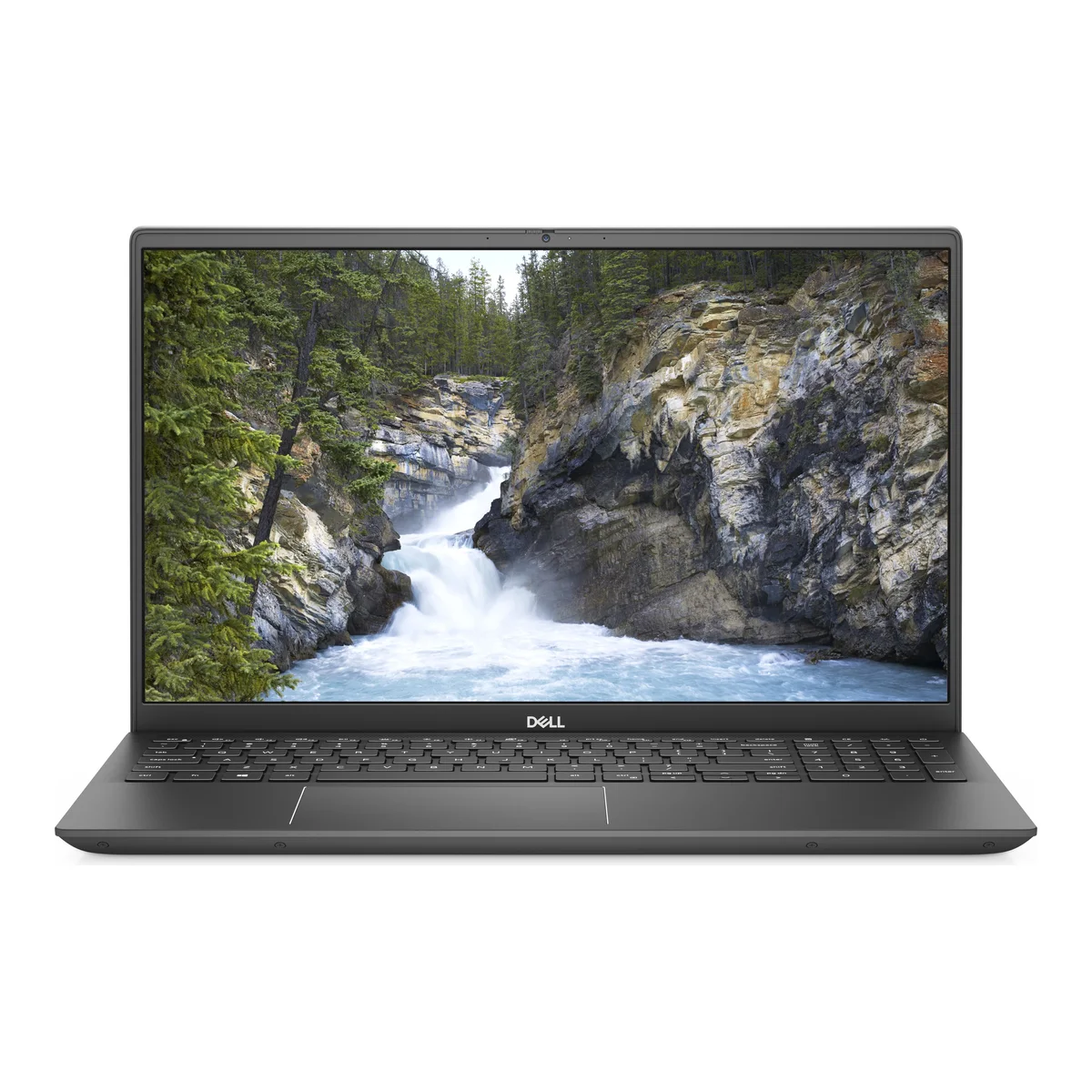
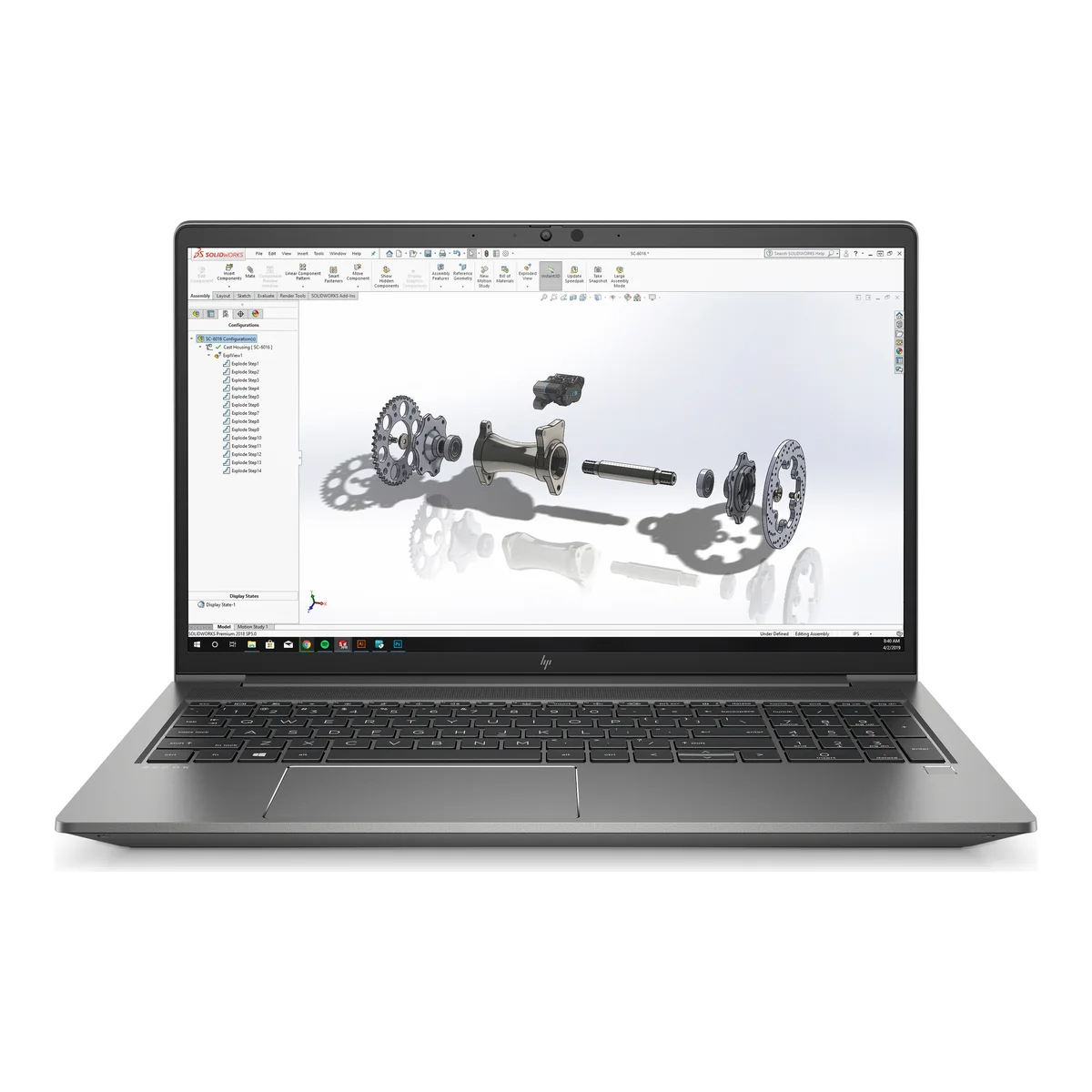
HP Spectre x360 13 Gem-Cut Core i7 10th Gen 16GB 13.3" 4K Touch Silver (Ex-UK)
From KSh 85,000 + VAT
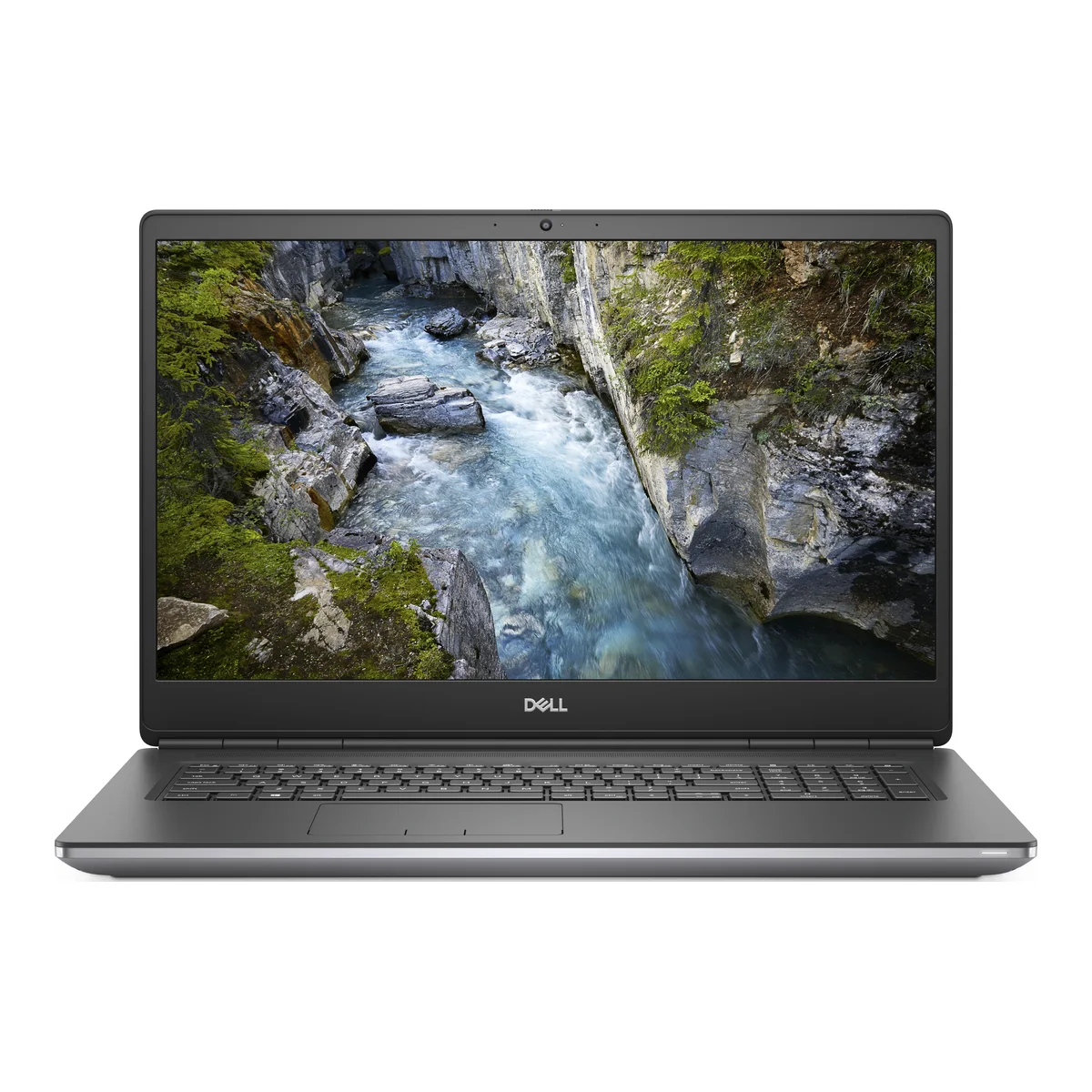
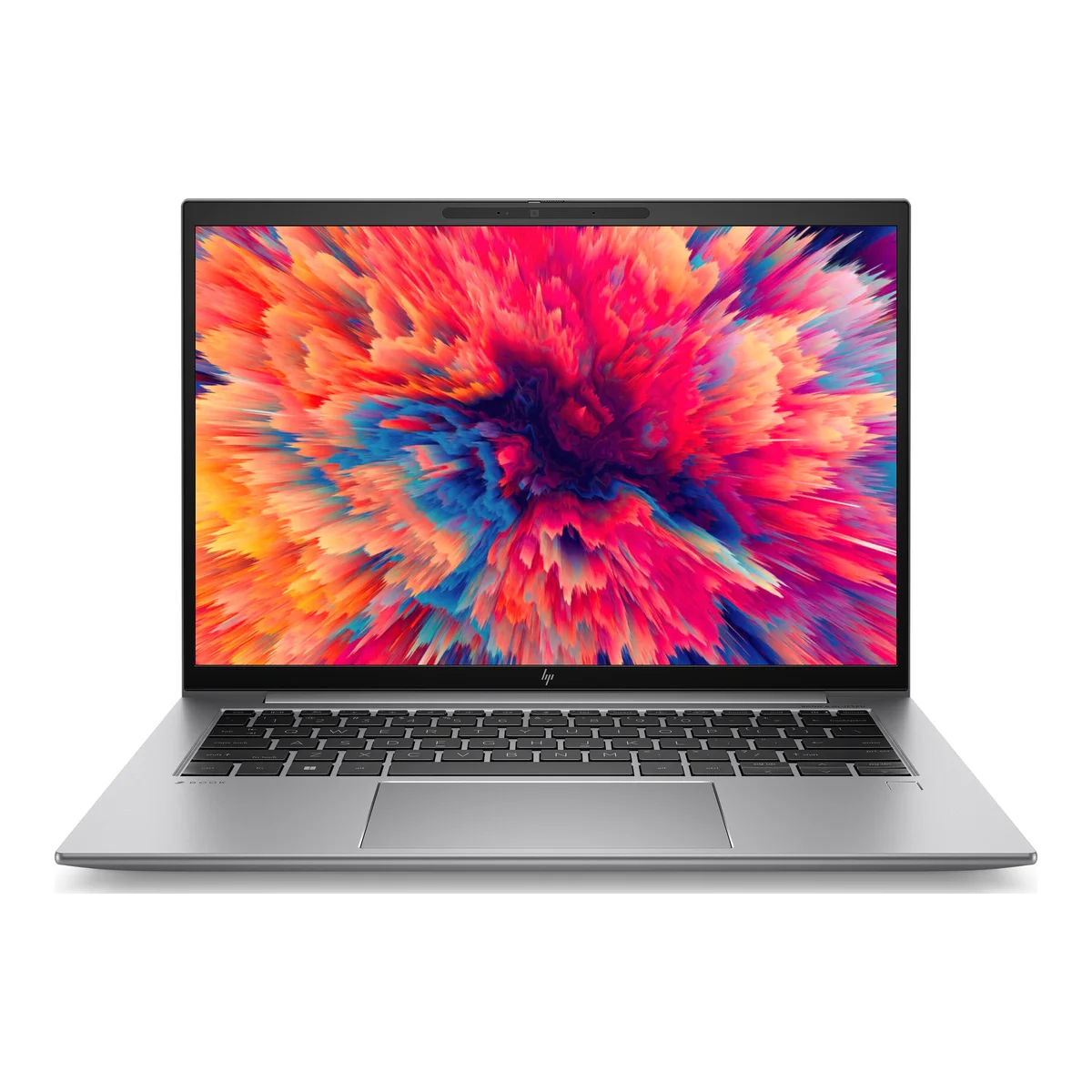
HP ZBook Power 15 G7 Core i7 10th Gen 16GB 15.6" Touch NVIDIA 4GB (Ex-UK)
From KSh 80,000 + VAT
Buying from FancyTech
Visit us at Rehema House, Standard Street, Nairobi, or order online for delivery in 1–3 hours in Nairobi and next day countrywide. Delivery is KSh 300 in Nairobi and KSh 600 to other counties, and free on orders above KSh 150,000. Each listing states its condition and warranty. See our returns policy or contact us with any question.
Keep reading
HP EliteBook Buying Guide: G3 to G10 for Kenyan Buyers
How to read HP EliteBook model numbers and generations, and which Ex-UK EliteBook fits students, offices and travel.
Lenovo ThinkPad Guide: T480s, X1 Carbon, X13 and Yoga Models
Why ThinkPads are favoured by professionals, how the X1, T and L lines compare, and which Ex-UK model to pick.
Dell Latitude and XPS Guide for Ex-UK Laptop Buyers
How Dell Latitude and XPS laptops differ, how to read model numbers, and what to look for on a used Dell in Kenya.
Returns and Warranty Explained for Kenyan Electronics Buyers
The difference between change-of-mind returns, faulty goods, manufacturer and seller warranties, and what to do when something goes wrong.
Best Laptop Specs for Students in Kenya, by Course
How much laptop a Kenyan university or college student really needs, with minimum specs by course and tips on stretching a budget.
HP ProBook, Envy, Pavilion and Dragonfly: How to Choose
The differences between HP's ProBook, Envy, Pavilion and Elite Dragonfly laptops and how to spot real value.